Display and frontends
Use the same files, windows and commands in a terminal, a native window or the browser. Choose the display that suits the machine in front of you; a remote project can use any of these local displays too. Choose another frontend with hide --window --resume or hide --web --resume after detaching the current one; see sessions.
Choose a frontend
hide --terminal .
hide --window .
hide --web .
--window selects Metal on macOS and Vulkan elsewhere. --metal and --vulkan choose explicitly. THC_EDIT_BACKEND overrides the backend in configuration; without either, the editor uses the terminal. Native and browser builds need their respective installation flags.
The native window and browser use the bundled bitmap font for its repertoire and system or browser font fallback for other text. The terminal uses its own font. Combining characters, joined emoji, skin tones and flags are handled as complete graphemes when editing and clipping; exact rendering follows the frontend. Each display item is limited to 32 Unicode scalars and 128 UTF-8 bytes. Longer clusters appear as one-cell replacement fragments. Source copying and saving retain every original byte; this display bound does not reject Unicode input. Metal, Vulkan and WebGL2 preserve the visible half of a wide glyph when a frame partly covers it. Text terminals use blank cells for a partial glyph, since terminal glyphs cannot be clipped.
The title shows the active relative filename, a distinguishing session ID prefix, and the average ms/frame over the last 60 actual draws. The timing refreshes about once a second and keeps its last value while idle. In native windows, input frames measure the demand, including time queued in SDL, through session processing, frame transport, decoding, and the presentation call. Coalesced input is counted once; input that changes no visible content adds no sample. Unsolicited frames start at frontend receipt, and local cursor/expose redraws start at their event. This is not a measurement of when pixels reach the physical display. Browser timing still measures frontend drawing and submission; browser GPU execution continues asynchronously.
Accessible views
The browser and Mac native frontend expose the visible Files and plugin sidebar as a read-only accessible tree. Names, hierarchy, selection, expansion and loading state come from the same prepared rows as the editor frame. Scrolling includes the ancestors needed to describe the visible rows. Bounds follow window movement, display scale and clipping.
Modal dialogs expose their visible labels, field values, choices and editor focus. Opening a dialog hides the underlying sidebar and image descriptions from accessibility until it closes. Read these controls through your browser or Mac accessibility tools; use the editor's normal controls to change them. Reading a control does not change keyboard focus or grant an agent permission to operate it. Source-document accessibility and accessibility actions remain separate work.
Display metadata follows streamer mode. The structured views in editor_screen always apply the agent privacy policy, even when streamer mode is off. Private field values and session keys are excluded. A protected dialog may expose only that a modal is present, keeping the covered views hidden too.
Text styles
Normal-width Markdown headings and strong text use bold; emphasis uses italic. These traits travel with colors through native, browser and terminal frames. The bitmap font uses deterministic stroke/slant variants; system fallback fonts use their own bold and italic faces. Terminal output uses SGR, with the terminal font deciding the appearance.
Options > Preferences > Wide section titles widens Markdown headings to two cells per grapheme and saves wideSectionTitles in [editor.defaults]. It is off by default. Widened headings omit bold, retaining italic if present. Native and browser displays stretch naturally narrow glyphs across those cells. The terminal uses fullwidth ASCII and ideographic spaces; other narrow graphemes keep their original text followed by padding. CJK and emoji that already occupy two cells stay two cells. Combining marks remain attached.
Heading wrapping, selection, cursor movement and links use the same prepared layout in every frontend. Copy retains the original semantic text, without fullwidth substitutions or extra wrapping newlines. A resized or replaced view uses ordinary geometry until its matching layout is ready. Tiled terminal views never use DEC whole-row width or height escapes.
Size and scale
Native windows and the browser start in Mode 3, an 80-by-25 character grid. Use Mode 259 for 80-by-50 with half-height rendering:
hide --window --mode 259 .
hide --web --size 100x32 --scale 2.5 .
Options > Preferences > Screen size changes modes while running. --mode 0x103 and --vga50 also select 259. These are Borland text-mode values: C80 = 3, C80 + Font8x8 = 259. Both use the same 8-by-16 glyphs at different vertical aspect ratios.
--size COLSxROWS overrides the mode's dimensions, with 40–512 columns and 12–256 rows. Resizing a native window changes its character grid. These options do not change the dimensions or font of a text terminal.
--scale accepts 1 through 8, rounded to 1/8 steps. Ctrl or Alt plus + or - changes scale by one step; = also increases it. Ctrl+0 or Alt+0 restores the initial display-aware default. The native default is 2 on standard displays and 4 at 2× display density. In Mode 259, scale 2 or higher retains every bitmap row; scale 1 downsamples vertically.
Appearance
Options > Preferences > Appearance offers Light, Dark and System. Use --appearance light|dark|system or THC_EDIT_APPEARANCE at startup. System is the default. Preferences groups key bindings and screen modes on the left, appearance and rendering controls on the right. Narrow terminals stack the controls into one column.
In text mode, Mac key symbols displays modifier symbols instead of key names. ⌥ and ⌘ occupy two cells. This is a display preference; it does not change which keys the terminal sends.
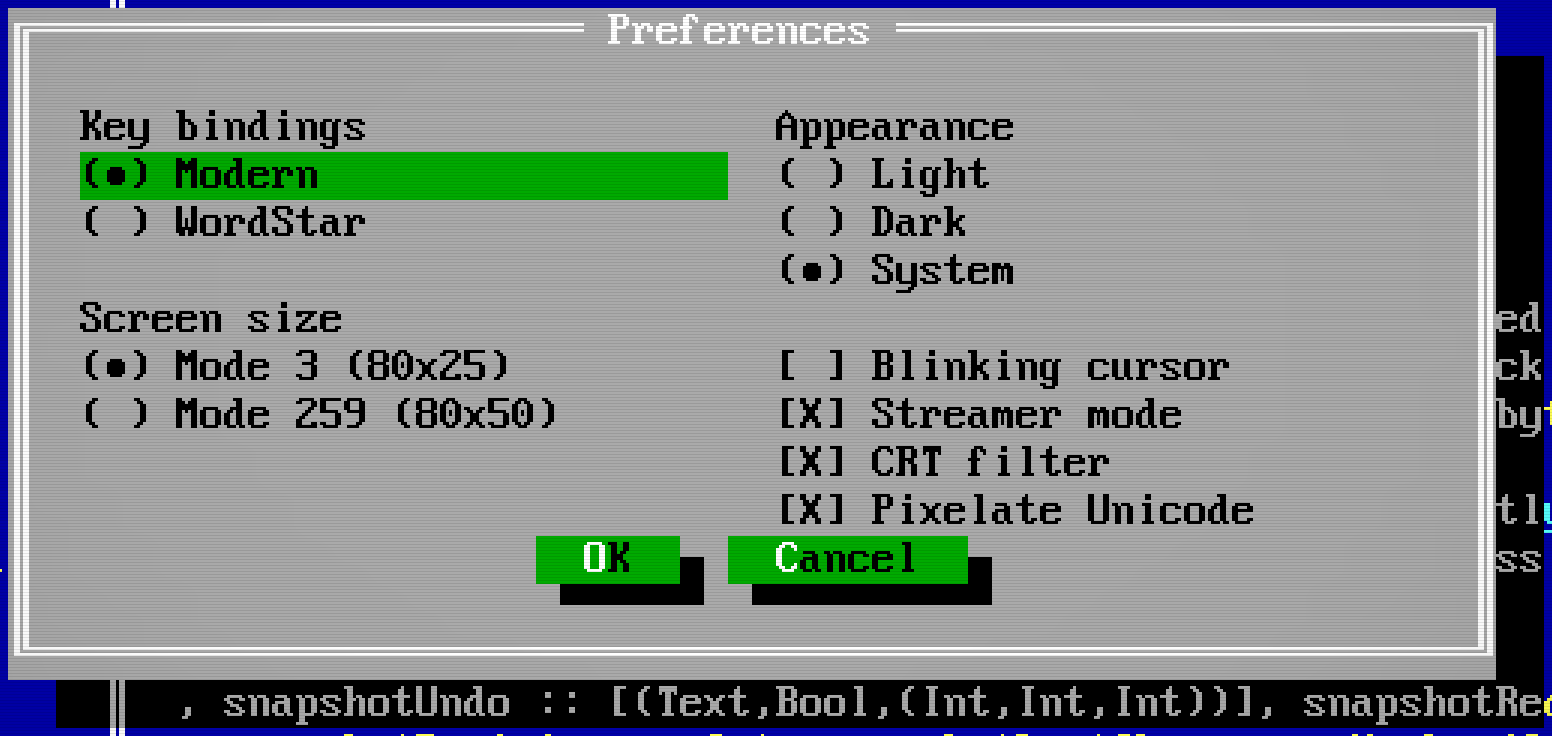
Native windows follow the OS appearance, and the browser follows prefers-color-scheme, including changes while running. Text terminals read COLORFGBG at startup and default to Dark when it is unavailable. The setting changes document panels such as Help and the default terminal colors; editor, menu and window-frame colors retain their palette. Explicit terminal colors remain intact.
Blinking cursor controls the insertion cursor. The native cursor blinks every half second; text terminals use the preference where DECSCUSR is supported.
Haptic Feedback requests a click when the pointer enters or leaves a dialog button in a native Mac window. It is off by default and follows the trackpad's system settings. See configuration to enable it at startup.
CRT filter, also available as --crt, adds scanlines and a vignette. The native frontend omits scanlines when the glyph rows are too small to keep text legible. Pixelate Unicode fits fallback text into bitmap-sized tiles; leave it off for full-resolution fallback. The native frontend uses filtered, dithered tiles, while the browser uses canvas shaping.
Files uses Unicode folder and file symbols, joined by single-line tree branches. Each nesting level adds one column. --material-icons selects bundled Material folder icons in a native window or browser; in a terminal it needs a Nerd Font containing Material Design Icons U+F024B and U+F0770.
Keyboard and clipboard
Use F10 and letter mnemonics for the in-window menus. On macOS, native menus also offer Command shortcuts. Option remains available for accented input, apart from numbered-window and scale shortcuts. If a Mac keyboard treats function keys as media controls, hold Fn/Globe or enable standard function keys in System Settings.
Native windows use the system clipboard. The browser also uses the system clipboard; if permission needs a fresh gesture, click the displayed Copy or Paste toolbar button to retry. A requested clipboard read applies once to its unchanged input target. Closing its dialog, editing or moving the selection, switching input focus, or reconnecting retires it; request Paste again. Direct terminal/browser paste and text composition still go to the current input.
The browser frontend handles these shortcuts when its editor has focus:
| Action | Windows/Linux | Mac |
|---|---|---|
| Select all | Ctrl+A | ⌘A |
| Undo / redo | Ctrl+Z / Ctrl+Shift+Z (Ctrl+Y) | ⌘Z / ⇧⌘Z (⌘Y) |
| Find / replace | Ctrl+F / Ctrl+H | ⌘F / ⌥⌘F |
| Next / previous match | Ctrl+G / Ctrl+Shift+G | ⌘G / ⇧⌘G |
Browser menu items for Find, Undo and Redo may act differently from these shortcuts. The editing guide explains Mac key symbols and how text-terminal bindings differ.
Fullscreen / capture keys requests fullscreen and Keyboard Lock where available. Some OS and browser shortcuts remain reserved. Text terminal mouse and modified-key support depends on the terminal emulator.
Browser files
Drop a local file into the browser to open it as a new editable buffer. Each upload is limited to 16 MiB. Its filename is a suggestion for saving, not a path on the machine running the editor. In a native window, dropping a local file opens its actual filesystem path. Remote clients upload dropped local files as new unsaved buffers.
Right-click a saved file in Files and choose Export saved copy… to copy its disk contents into another application. Unsaved edits stay in the editor; use File > Download in the browser when you want the current buffer instead.
On macOS and Windows, drag that Files row after choosing export. A click without dragging cancels the offer. Scrolling, changing the sidebar, resizing or leaving the frontend also cancels an armed row, so the gesture cannot silently export a different file. The destination receives a copy, including over SSH; the source is neither moved nor marked saved. Native Linux and terminal frontends use the optional file drag helper.
In the browser, this action prepares Download filename in the toolbar. Choose Download, or drag it out in a browser that supports that operation.
File > Download exports the current buffer, including unsaved text or binary bytes, to the browser's download location. Download does not mark the source file saved. Use File > Save to save on the editor host.
After a download, Download filename remains in the browser toolbar for that snapshot. Click it to download another copy, or drag it to a desktop/file manager in Chromium where the browser and destination support outgoing file downloads. Firefox and Safari should use the explicit Download action. The browser receives file bytes over the authenticated editor connection and drags a browser Blob URL, never the editor host's filesystem path. Dragging exports a copy and does not delete, move or save the source. Cancelling a drag leaves the snapshot available.
The current snapshot stays available until another export replaces it or the session/tab closes. Up to four outgoing drag URLs remain readable for five minutes after their drag ends, including after replacement; if those slots are full or the snapshot exceeds 16 MiB, use Download. The browser owns the downloaded copy's location and lifetime; hide cannot confirm that an external application accepted a drag.
Reloading the page reconnects to the same editor session through the running frontend process. If you leave with changed buffers or an unsent query, the browser asks for confirmation; choose Stay to return and save. File > Exit uses the editor's save prompts and attempts to close the tab. A browser can refuse to close a tab opened manually, in which case close it after the editor reports that it has exited.
Closing the tab leaves the frontend process running. To release the session for another display, press Ctrl+] in the page and return with --resume; see sessions. Remote editing keeps the display local while files and tools run on another machine.