Editing
Open a directory to work on its files, or pass filenames to put them directly on the desktop:
hide .
hide src/Main.hs src/Library.hs
With no argument, the editor finds the nearest enclosing Cabal package, falling back to the current directory. A directory argument takes precedence. Opening a package also opens its .cabal file; with several package files, the editor prefers the directory namesake, then the first alphabetically. Explicit source files stay selected.
Files and directories
F3 opens the file dialog. Enter a name or wildcard filter, select a file and choose Open. Double-click a directory to browse into it, or a file to open it. The list shows the file's size and local modification time.
Ctrl+B (⌃B in the Mac window), or Tools > File tree, toggles the Files pane. Expand directories to browse their contents and open files from the tree. Drag the divider to make room for long names; adjacent windows follow it. Unsaved filenames appear in red and return to normal after saving or undoing the change. Their names and buffer window titles show green +n and red -n counts for lines added and removed since opening or the last save. Changing an existing line counts as one removal and one addition. Split views share these counts; unnamed buffers show them in their titles too. Saving establishes a new baseline.
File > Change dir changes the working directory and refreshes Files without closing open buffers. Enter browses into the selected directory, Browse opens a typed path, and OK accepts the displayed directory.
Documentation and links
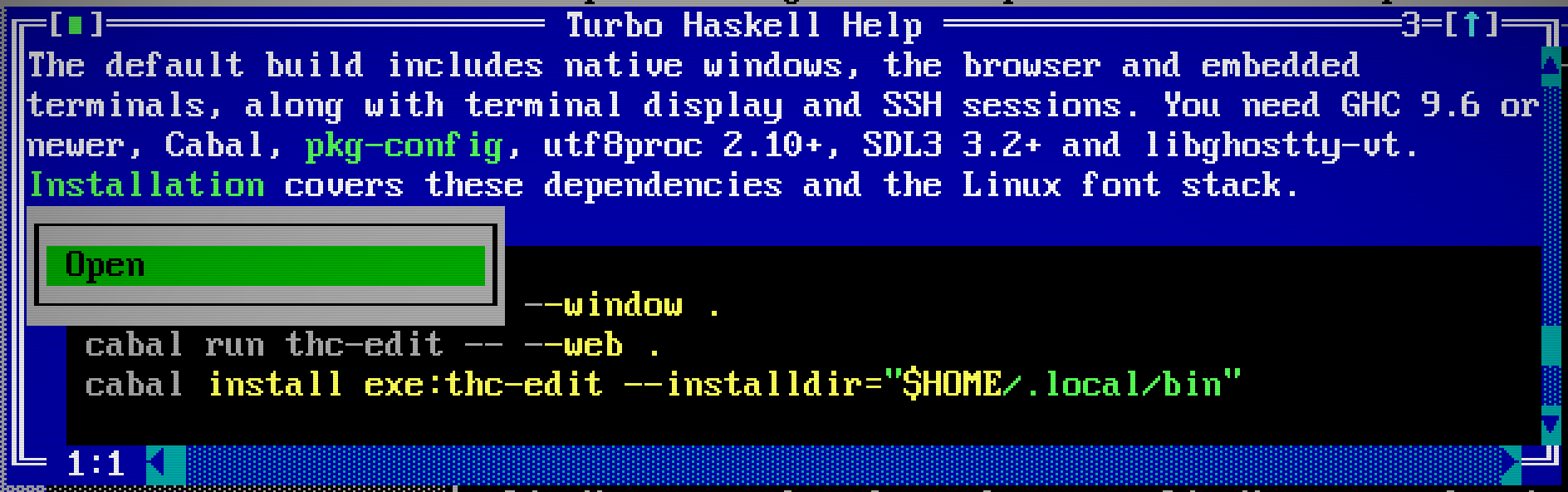
F1 opens the rendered README. Click a colored link such as Installation to open that Markdown document in Help. Relative links follow from the document you are reading, including links back up to its parent folder. Drag across a link to select its text without opening it.
Web links open in your browser. Right-click a linked screenshot and choose Open to view it; the Files pane offers the same action for Markdown, images and PDF files. Double-clicking a file in Files still opens its editor buffer. In a browser session, external links and images open in a new tab; if popup blocking prevents that, click Open link above the editor. Linked Markdown and transferred images/PDFs are limited to 8 MiB each.
Buffer views
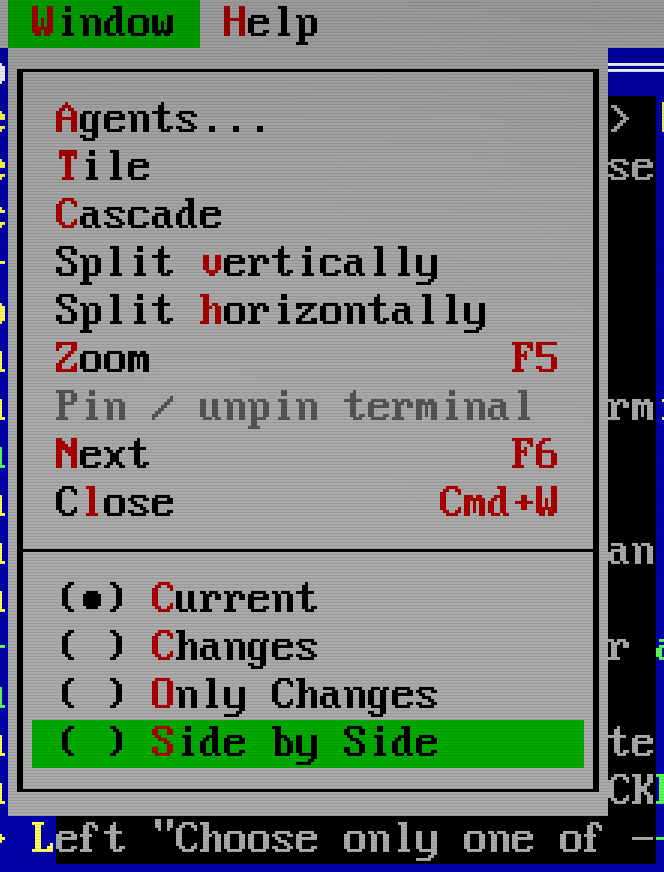
The section at the bottom of Window changes how the selected source window shows unsaved edits:
- Current shows the editable file with deleted text hidden.
- Changes includes deleted originals in red and additions in green.
- Only Changes keeps two unchanged lines around each changed region and folds the rest behind omission markers.
- Side by Side aligns saved text on the left and current text on the right. Red and green blank regions show where the other side has no corresponding line. Drag the center divider to give either side more room.
Click a view name to change this window. Click its radio control, or highlight the row and press Space, to choose the default for newly opened buffers. The default is saved in the existing THC configuration; other open windows keep their views. Split views share edits and undo history but can use different views.
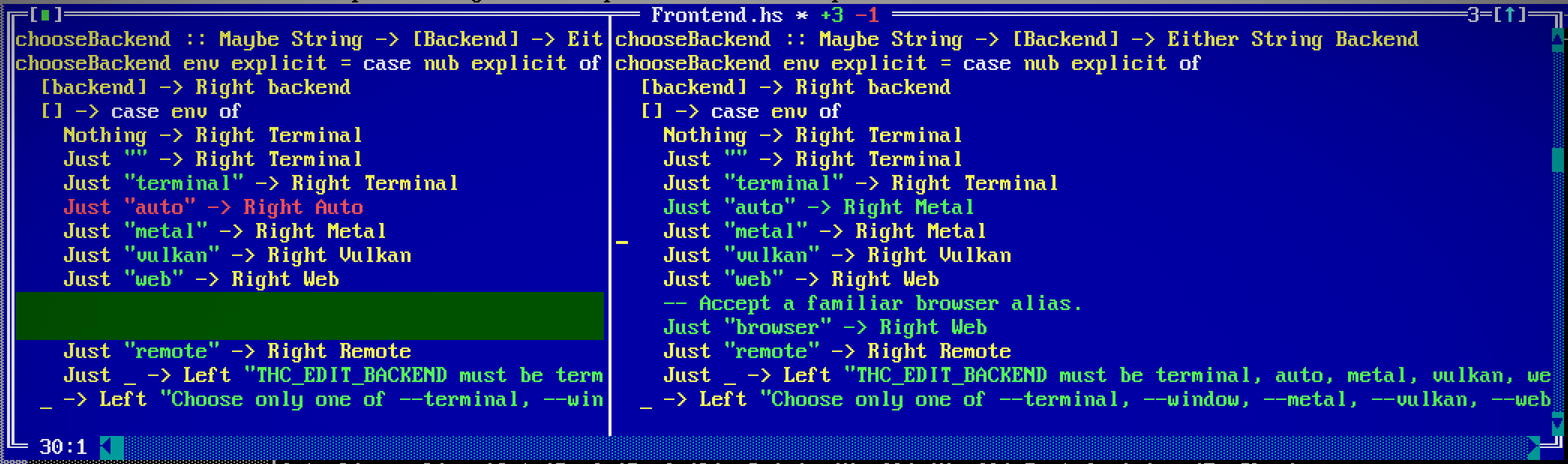
Deleted text and the saved side can be selected and copied. The editing caret stays in current text; Cut removes only selected live text and does not delete lines hidden by Only Changes. Right-click a changed region and choose Revert this change to restore its originals and remove its additions in one undoable operation. Saving establishes a new baseline and clears the change view.
Text and selection
Type to insert text. Hold Shift while moving to select it, or drag with the mouse. The Mac column below describes the native window: ⌃ Control, ⌥ Option, ⇧ Shift and ⌘ Command. Text terminals use the Windows/Linux bindings when their emulator forwards them; Command shortcuts belong to the terminal app. Options > Preferences can display Mac modifier symbols in text-mode key labels. It keeps the actual Control/Alt bindings; it does not remap them to Command. The choice is saved in configuration.
Mac shortcuts follow Apple’s modifier order: Control, Option, Shift, Command (⌃⌥⇧⌘). Symbols are joined without plus signs, so redo is ⇧⌘Z and Replace is ⌥⌘F. Return is the main key labeled Enter on Windows keyboards; Esc cancels. Shortcuts written with Ctrl or Alt elsewhere in this guide still mean Control or Option on Mac, unless a Mac alternative is given. Command is a separate key.
| Action | Windows / Linux | Mac |
|---|---|---|
| Move by word | Ctrl+← / Ctrl+→ | ⌃← / ⌃→ |
| Select by word | Ctrl+Shift+← / Ctrl+Shift+→ | ⌃⇧← / ⌃⇧→ |
| Copy / cut / paste / select all | Ctrl+C / Ctrl+X / Ctrl+V / Ctrl+A | ⌘C / ⌘X / ⌘V / ⌘A |
| Undo / redo | Ctrl+Z / Ctrl+Shift+Z (Ctrl+Y) | ⌘Z / ⇧⌘Z |
| Start / end of file | Ctrl+Home / Ctrl+End | ⌃Home / ⌃End |
Ctrl+Insert, Shift+Delete and Shift+Insert also copy, cut and paste. Split views share text and undo history; each view keeps its own cursor and selection. UTF-8 text retains its line endings, including CRLF. Combining sequences and joined emoji move and delete as complete graphemes; your terminal or selected frontend supplies their appearance.
Choose ACP or Copilot from the Provider dropdown in Options > Autocomplete for inline suggestions. Choose Off to disable them. Click the field or press Enter to open it, use the arrow keys to choose, and press Enter to select or Escape to cancel.
| Action | Windows / Linux | Mac |
|---|---|---|
| Request a suggestion | Alt+\ | ⌘\ |
| Previous / next alternative | Alt+[ / Alt+] | ⌘[ / ⌘] |
| Accept all / next word | Tab / Alt+→ | Tab / ⌥→ |
| Dismiss | Escape | Escape |
Holding Alt (⌥ on Mac) alone for a second requests a suggestion in a native window or browser. Modifier-only holds are unavailable in text terminals. The explicit Mac completion shortcuts also work in the browser; Option remains available for composed text. HLS identifier completion is a separate action on Ctrl+Space (⌃Space), subject to OS shortcut interception.
Syntax highlighting follows the filename. Haskell, C, C++, Cabal files and over 100 other languages use Skylighting's language definitions. New unnamed text buffers start with Haskell highlighting; unknown extensions use plain text. Colors update in the background after edits; the current text remains visible while coloring is pending. A slow coloring job leaves plain text until the next edit, and results from older text are discarded.
The native window and browser use the system clipboard. Text terminals keep an editor-local clipboard and request a system clipboard write through OSC 52 on Copy and Cut. Whether that reaches your system clipboard depends on the terminal. Use the terminal's paste command for external text. See frontend controls for browser shortcut differences and clipboard permissions.
Search
| Action | Windows / Linux native window or terminal | Mac native window |
|---|---|---|
| Find / replace | Ctrl+F / Ctrl+H (Ctrl+R) | ⌘F / ⌥⌘F |
| Next / previous match | Ctrl+L / Ctrl+Shift+L | ⌘G / ⇧⌘G |
| Go to line | Ctrl+G | ⌃G |
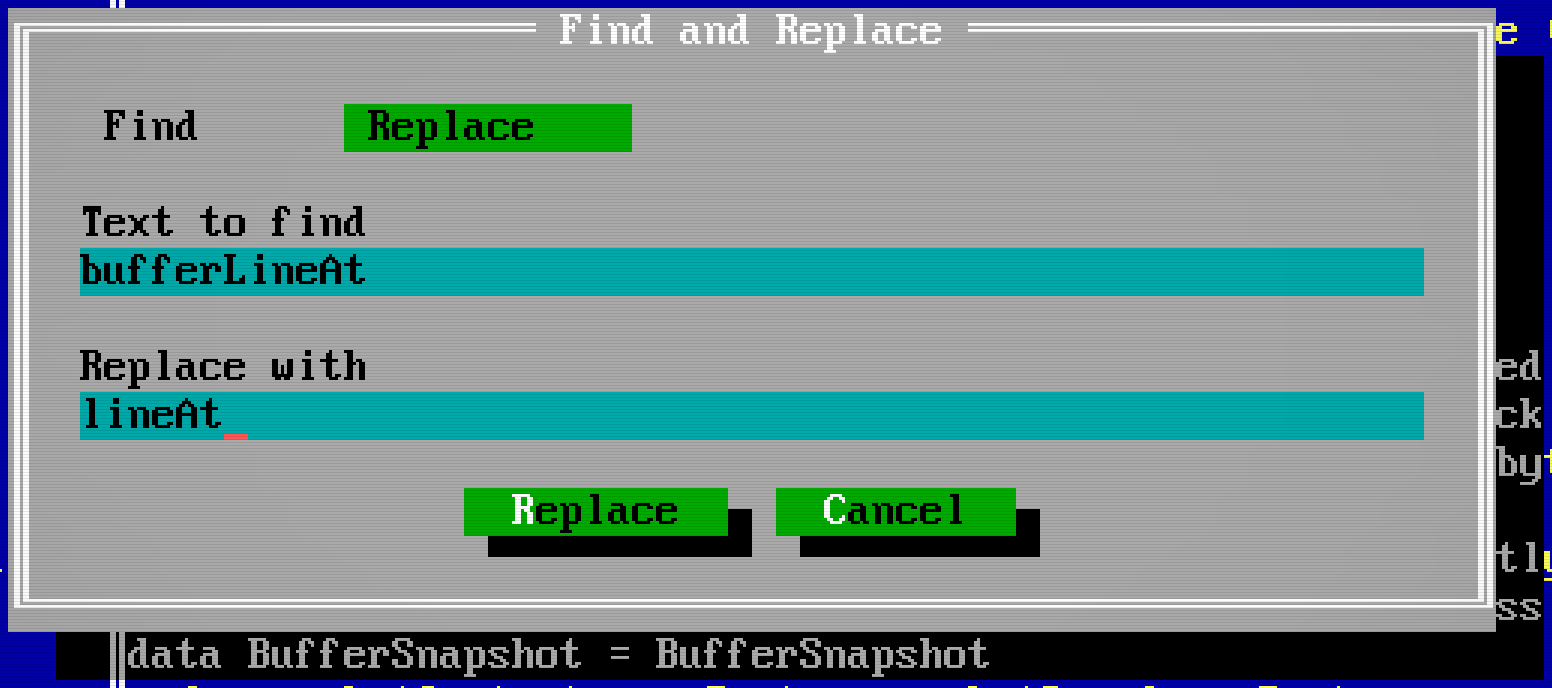
Find and Replace share a dialog: click either tab or press Ctrl+Tab (⌃Tab) to switch without losing the search or replacement text. The corresponding Find/Replace shortcut also switches tabs. Search is literal and case-sensitive; Replace changes one match.
In the browser, Ctrl+G / Ctrl+Shift+G (⌘G / ⇧⌘G on Mac) find the next and previous matches; use Search > Go to line for a line number. Browsers retain Ctrl+R (⌘R on Mac) for Reload, and native Mac ⌘H keeps Hide. F3 still opens files. Embedded terminals retain control keys while the terminal has focus; native Mac menu shortcuts still invoke their editor commands.
Windows
Use Window > Split vertically or Split horizontally to keep two parts of a file visible. A split is another view of the same file, so an edit or Undo in either window appears in both.
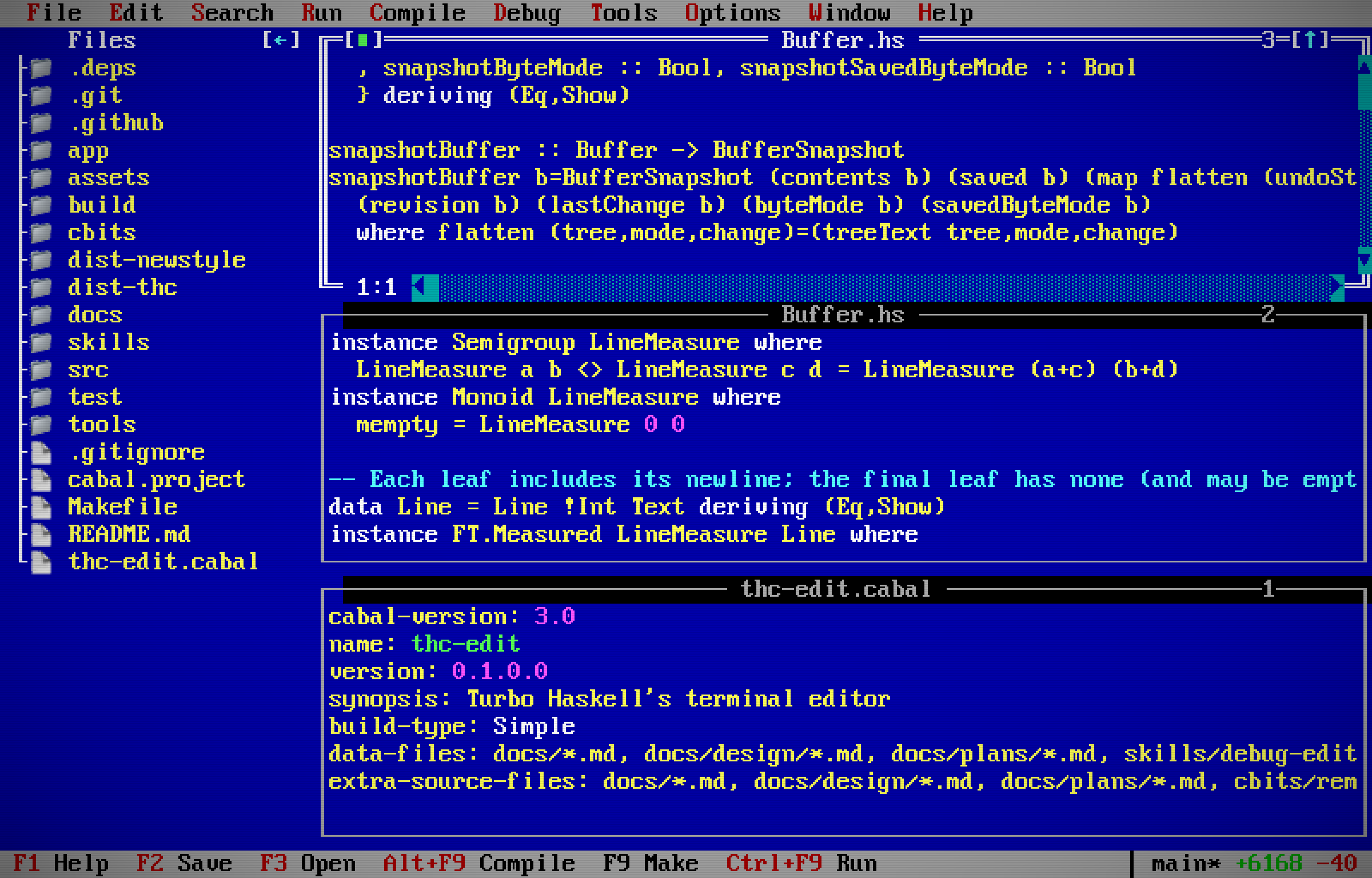
Drag a title to move a window, a frame edge to resize that side, or the bottom-right corner to resize both dimensions. Window > Tile arranges windows alongside one another; Cascade staggers them. F5 zooms the active window. During a move or resize, arrows move, Shift+arrows resize and Enter finishes. Escape restores all windows affected by the drag.
Touching edges stay together when you drag a title or move a divider. Equal sides share the divider; a smaller window whose whole side touches the edge moves with it. Once that window reaches a desktop boundary, its outer edge stays there and further divider movement resizes it. The same rule carries a chain of touching windows. Partial overlaps stay independent, and a diagonal corner drag breaks the contact.
Windows touching a desktop edge grow with that edge when the desktop grows. Floating windows keep their position and size. Dragging a title preserves size while there is room, then shrinks the window against the desktop or dock boundary. Files and Messages remain the boundaries for adjacent windows.
| Action | Windows / Linux | Mac native window |
|---|---|---|
| Next / previous window | Ctrl+Tab (F6) / Ctrl+Shift+Tab | ⌃Tab (F6) / ⌃⇧Tab |
| Activate numbered window | Alt+1…9 | ⌥1…9 |
| Zoom | F5 | F5 |
Each editor and Messages window has a stable number.
Alt+Tab cycles the menu, Files, windows and Messages; Shift reverses it. Some operating systems reserve this shortcut. Click the destination or use the window shortcuts when the OS intercepts it.
Menus and dialogs
Press F10 to enter the menu bar, then use arrows or letter mnemonics. The status bar describes the highlighted action. Its key labels are clickable. On macOS, Haskell > Settings… (⌘,) opens Options > Preferences; About Haskell opens the About dialog. The native menu bar provides ⌘ shortcuts. Other Control bindings remain Control; ⌘ is not a universal substitute. Function keys may need Fn/Globe.
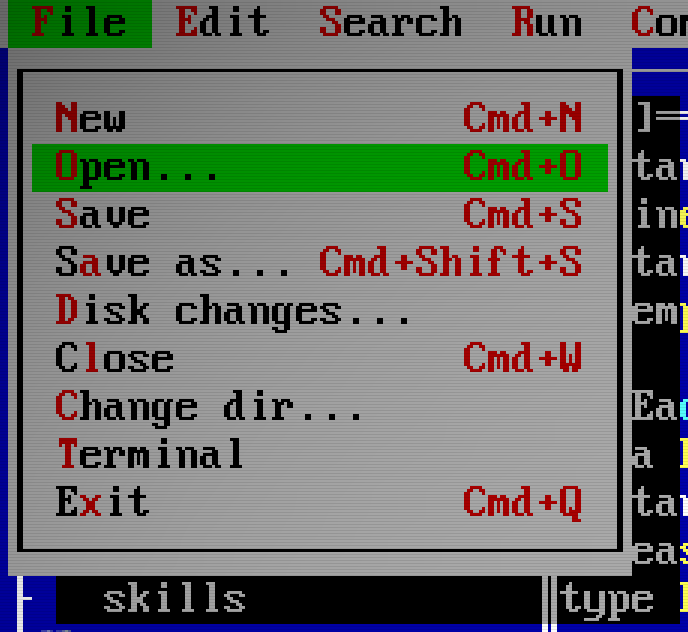
Tab and Shift+Tab (⇧Tab on Mac) cycle dialog controls. Enter (Return on Mac) accepts and Escape (Esc) cancels. Ctrl or Alt plus a button's marked letter activates it. In the native Mac window, use Control with the letter; Option keeps its text-entry role. Dialogs also accept Alt+Tab for focus traversal. Mouse buttons activate when released over the button; releasing outside cancels the click.
Save, close and external changes
F2 or Ctrl+S (⌘S on Mac) saves. File > Save as (⇧⌘S) writes under a new name and refuses to replace an existing destination. Alt+F3 (⌘W) closes the current window; Ctrl+Q or Alt+X (⌘Q) exits. Closing the last view of a changed file, or exiting with changed files, asks what to save. File > Exit ends the editor session. To leave the desktop running, detach and use hide --resume later; Ctrl+] detaches from the terminal frontend. See sessions for the other frontends.
A title star means the buffer has unsaved edits. The branch badge's star means saved changes in Git; saving a buffer can clear one while setting the other.
The editor watches open files and expanded directories. A clean buffer reloads when the file changes on disk, retaining Undo. If the buffer also has edits, or the file was deleted, the editor keeps the versions and offers:
| Choice | Effect |
|---|---|
| Compare | Inspect the editor, last-saved and disk versions |
| Reload | Use the disk version |
| Keep | Keep editing your version without overwriting the disk file |
| Save as | Write your version under another name |
File > Disk changes reopens the conflict. Keep does not accept the new disk contents as a save baseline: the next Save still checks the conflict. Repeated observations of the same change do not repeatedly interrupt you. These checks also apply after Git operations and conversation edits.
WordStar keys
Select WordStar under Options > Preferences, or start with --wordstar.
| Action | Windows / Linux | Mac |
|---|---|---|
| Up / left / right / down | Ctrl+E / S / D / X | ⌃E / ⌃S / ⌃D / ⌃X |
| Previous / next word | Ctrl+A / F | ⌃A / ⌃F |
| Delete line | Ctrl+Y | ⌃Y |
| Mark block start / end | Ctrl+K, then B / K | ⌃K, then B / K |
| Copy / cut / delete block | Ctrl+K, then C / V / Y | ⌃K, then C / V / Y |
| Save / close | Ctrl+K, then S / D | ⌃K, then S / D |
| Start / end of line | Ctrl+Q, then S / D | ⌃Q, then S / D |
| Start / end of file | Ctrl+Q, then R / C | ⌃Q, then R / C |
| Find / replace | Ctrl+Q, then F / A | ⌃Q, then F / A |
Escape cancels a prefix. This is a useful subset of WordStar's commands.
See also Haskell tools, Git and hex editing.