Conversations
Keep a conversation beside the source you are working on. Ask about selected text or another open file, including unsaved work, then read the reply and review proposed changes in the same desktop.
Links in replies work like documentation links: click to open, or drag to select text. Relative Markdown and image links resolve from the conversation's project directory. Right-click a linked image and choose Open to view it.
Configure a provider
Options > Agents configures an ACP stdio provider. Enter its executable, a JSON array of arguments and a JSON object of environment overrides. The executable is launched directly; arguments are not interpreted by a shell. Authenticate with the provider's own tools before starting it in the editor.
For Codex, install the published codex-acp adapter and enter:
| Field | Value |
|---|---|
| Executable | codex-acp |
| Arguments | [] |
| Environment | {} |
The adapter version exercised with the editor is @agentclientprotocol/codex-acp@2.0.1. Its CODEX_PATH environment override can select an existing Codex executable. Provider installation, authentication and model access are separate from the editor.
Settings remain in the user's legacy thc-edit configuration directory. In a remote session, configure the provider on the remote host, where it runs beside the project.
Send a query
Open Tools > Conversation (Ctrl+Shift+C, or ⇧⌘C on macOS) and type in the draft at the bottom. The command focuses the existing conversation without repainting its history or replacing its draft. Your messages align right in cyan; replies align left in gray. Code keeps its syntax colors.
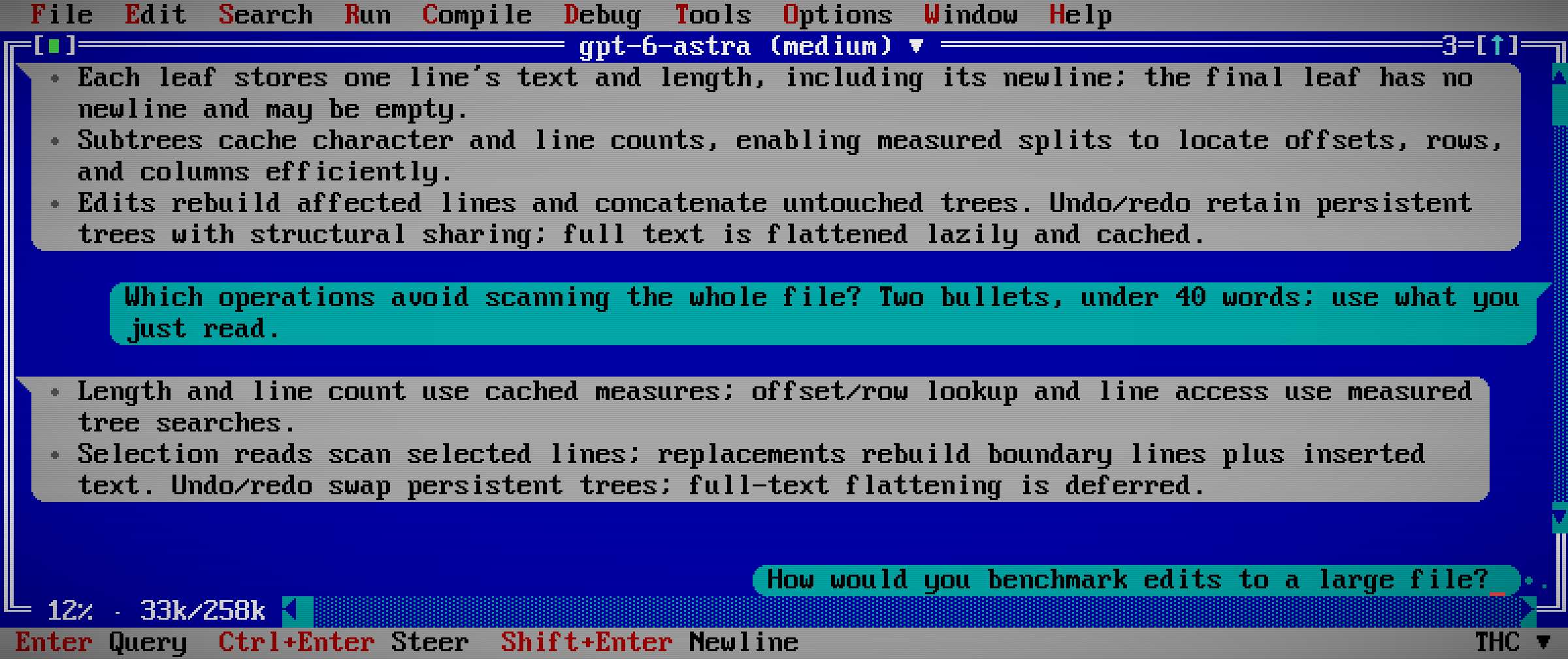
This recorded exchange asks the agent to explain the editor's own buffer implementation. The screenshot replays the recorded replies and rounded context usage through the current renderer. The cyan bubble at the bottom is the next draft, not a sent message. Press Enter (Return on Mac) to send it with the default Query setting. The title selects the model and effort; the lower-left counter reports context usage. Click the double chevron beside a run of tool calls to see the individual calls, then expand a call to inspect its details.
| Windows/Linux | Mac window/browser | Action |
|---|---|---|
| Enter | Return | Query by default: send, or queue while a reply is active |
| Shift+Enter | ⇧Return | Insert a newline |
| Ctrl+Enter | ⌃Return or ⌘Return | Steer by default, if the provider supports it |
| Escape | Esc | Cancel the active reply |
| Tab | Tab | Browse replies with the keyboard |
Choose Options > Chat input to make Enter Query or Steer; Ctrl+Enter (⌃Return or ⌘Return on Mac) always uses the other action. Both actions remain visible in the status bar, including when no reply is running. The setting also lives in the global or project configuration:
[editor.defaults]
chatSubmit = "query" # or "steer"
Typing while browsing replies returns to the draft. The draft grows with its contents, then scrolls after twelve visible rows. Draft Undo and Redo remain available while replies stream. Clickable status-bar actions offer the same commands. Cancelling the active reply lets queued queries proceed in order.
Click the conversation title, or use Tools > Conversation model, to choose from the provider's advertised models and reasoning settings. Choices are disabled during a reply and take effect after confirmation. Providers without these options keep a plain title. The lower-left frame shows reported context usage, such as 37% · 148k/400k, or -- until those values are available. Child conversations use their own advertised settings and usage; model changes also wait until their message queue is empty.
Steering keeps the draft until the provider accepts it into the active turn. If that turn has already finished, use Query to send the retained draft. The editor does not automatically replay it. A legacy provider that starts an unowned turn, or fails to confirm the outcome, is stopped; inspect the retained history before deciding whether to resend.
Work with live editor context
The editor automatically supplies its built-in MCP server to the ACP provider when starting or resuming a conversation. There is no separate context picker to configure. Ask the provider to look at a named file, the source selection or the open windows; its tools use the editor's current state when called.
| Tool | Available context |
|---|---|
list_windows |
Window titles, numbers, geometry, active window and side panels |
list_buffers |
Open files and untitled buffers, paths and unsaved-change state |
read_buffer |
Current text, including unsaved edits, or bytes from a hex buffer |
read_selection |
Selected text and cursor offsets in a chosen window |
The agent can also use HLS, inspect diagnostics, arrange windows, navigate text and hex buffers, preview/apply undo history, build/run/test, and work with shared terminals. Session tools describe the full interface, including screenshots, checked diffs and source debugging. Mutating tools work on this live session; buffer edits and saves are separate actions.
Read and copy
Drag over reply text to select it. Copying inside one bubble gives plain text; copying across bubbles adds User: and Bot: labels. Bubble borders and timestamp separators are excluded. Tools > Copy raw conversation copies the original Markdown instead. Pauses of five minutes or more get a local timestamp separator.
Right-click a fenced sh, bash, zsh or shell code block in a conversation or Help and choose Execute in terminal to run the whole block in the current project directory. The terminal shows output and accepts keyboard input and Ctrl+C. Execution uses the original code, including tabs and line breaks, regardless of display wrapping. console and shellsession examples containing prompts or captured output are display-only. Empty blocks report an error.
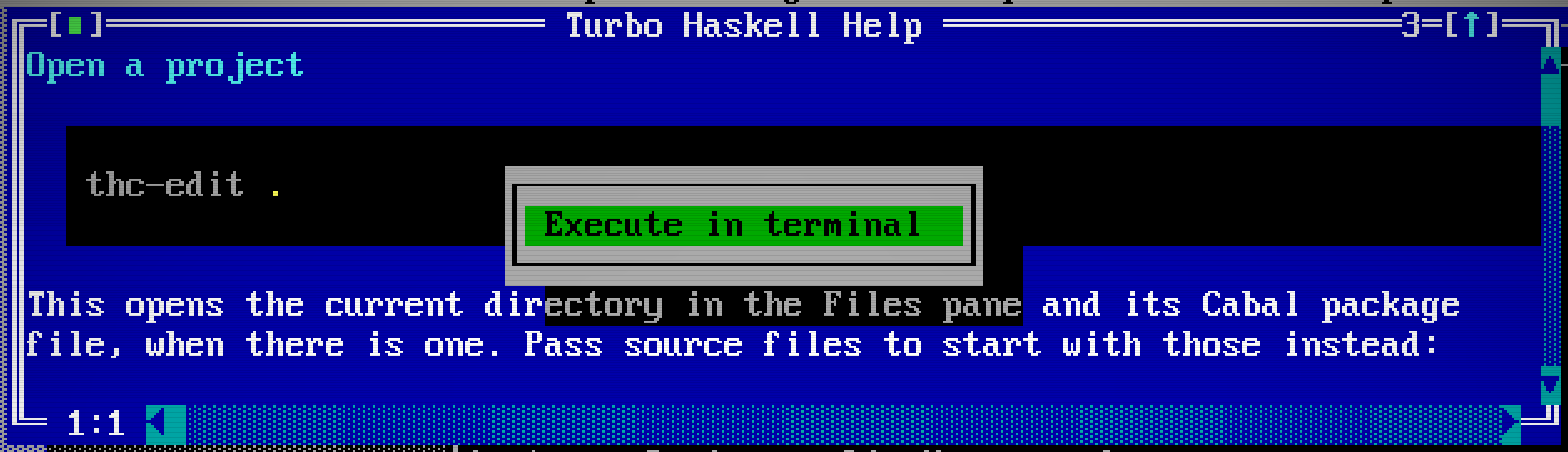
Replies use CommonMark, including highlighted fenced code, lists and tables. Tables wrap to the available width and become labeled cells when columns no longer fit. Tool calls appear as compact chevron rows. Click one to expand its full request/update JSON; click again to collapse it.
An agent can ask a question inline with suggested choices and a free-text answer. Choose an option or enter your own reply, then submit. Cancel dismisses the question. Your unfinished conversation draft is retained separately.
Review requested work
Permission dialogs show the provider's actual choices. Review opens a read-only view of the request; Tools > Conversation returns to the pending choice. Escape denies it.
ACP file-write requests ask for approval, preserve the old buffer in Undo and use the normal checked save path. If the editor or disk version changed while the request was pending, the stale write is rejected. These file requests are bounded by the conversation's project directory.
The provider is a subprocess with its own tools and permissions. The editor's file boundary does not sandbox that subprocess; configure those permissions in the provider. With the optional terminal build, ACP terminal requests also ask before running and use the editor's embedded terminals.
Continue later
Detach the editor and use hide --resume to return to the running desktop, including its conversation. Editor sessions cover this workflow across native windows, the browser, terminals and SSH.
Tools > New conversation (Ctrl+Shift+N, or ⇧⌘N on macOS) starts a fresh primary conversation directly, including from a child view. Tools > Resume session accepts a saved provider session ID; the latest ID is saved across editor restarts. These menu actions manage the provider's conversation, independently of the editor session selected by --resume. Resumption uses capabilities advertised by the provider. Transcript replay requires provider support for loading the conversation; a provider that only resumes may continue the session without replaying its earlier messages.
See Git to review the resulting saved changes and running to use the terminal alongside the conversation.
Give the agent standing context
Use Options > Agent Context to edit global or project guidance in TOML. Global context applies across projects; a project's thc.toml adds its own instructions. Save before sending a query or steering message. The editor supplies changed context without adding it as a visible user bubble. The agent can read the effective guidance but cannot rewrite it. See Agent context for the format and precedence.
Agents receive a small skill catalog on their first query and can load task workflows through the documentation tools. The operation reference gives the corresponding calls by category.
Complete code while you edit
Choose Options > Autocomplete and select ACP or Copilot. Completion has its own provider settings, so your main conversation can use a different model. Suggestions appear in gray without changing the buffer.
| Windows/Linux | Mac window/browser | Action |
|---|---|---|
| Alt+\ | ⌘\ | Request a proposal at the cursor |
| Alt+[, Alt+] | ⌘[, ⌘] | Browse alternatives; request another when you reach the end |
| Alt+Right | ⌥→ | Accept the next word |
| Tab | Tab | Accept the proposal |
| Escape | Esc | Dismiss it |
In the graphical and browser frontends, holding Alt (⌥ on Mac) alone for a second also requests a proposal. Traditional terminals use the explicit shortcut. Moving or editing invalidates pending suggestions; accepted text goes into the normal undo history.
ACP completion keeps a private conversation warm between requests. It receives nearby lines, the cursor position and short recent-edit excerpts, and can read more of the current file when needed. It receives acceptance feedback on later requests. Its tools can propose changes but cannot apply them, run programs or control the editor.
The completion conversation is hidden by default. Enable Show completion chat to inspect it beside Messages and terminals. In ACP mode you can type hints there—such as “keep this allocation-free”—and discuss intent with the same completion agent. Enter (Return on Mac) sends a hint; Shift+Enter (⇧Return) adds a newline. This draft is separate from your main conversation.
Copilot uses GitHub's copilot-language-server executable. Choose Sign in in the autocomplete dialog, then Continue when ready to complete the device flow. The language server manages account credentials; the editor does not put them in TOML or session recovery. See Configuration for provider settings.