hide — Haskell IDE
hide is a Haskell IDE written in Haskell, and the Turbo Haskell editor. It does not require Turbo Haskell to function. It brings file editing, language tools, builds, debugging, Git and agent conversations into one workspace. Use it in a terminal, a native Metal/Vulkan window or a browser, with the same files, windows and commands in each.
The interface follows the Borland Turbo Pascal editor: menus, overlapping windows, split views and a status bar with clickable shortcuts. Files, messages, terminals and conversations can stay open beside the code you are working on. The editor runs independently of the THC compiler; you can use GHC or THC for project builds and runs.
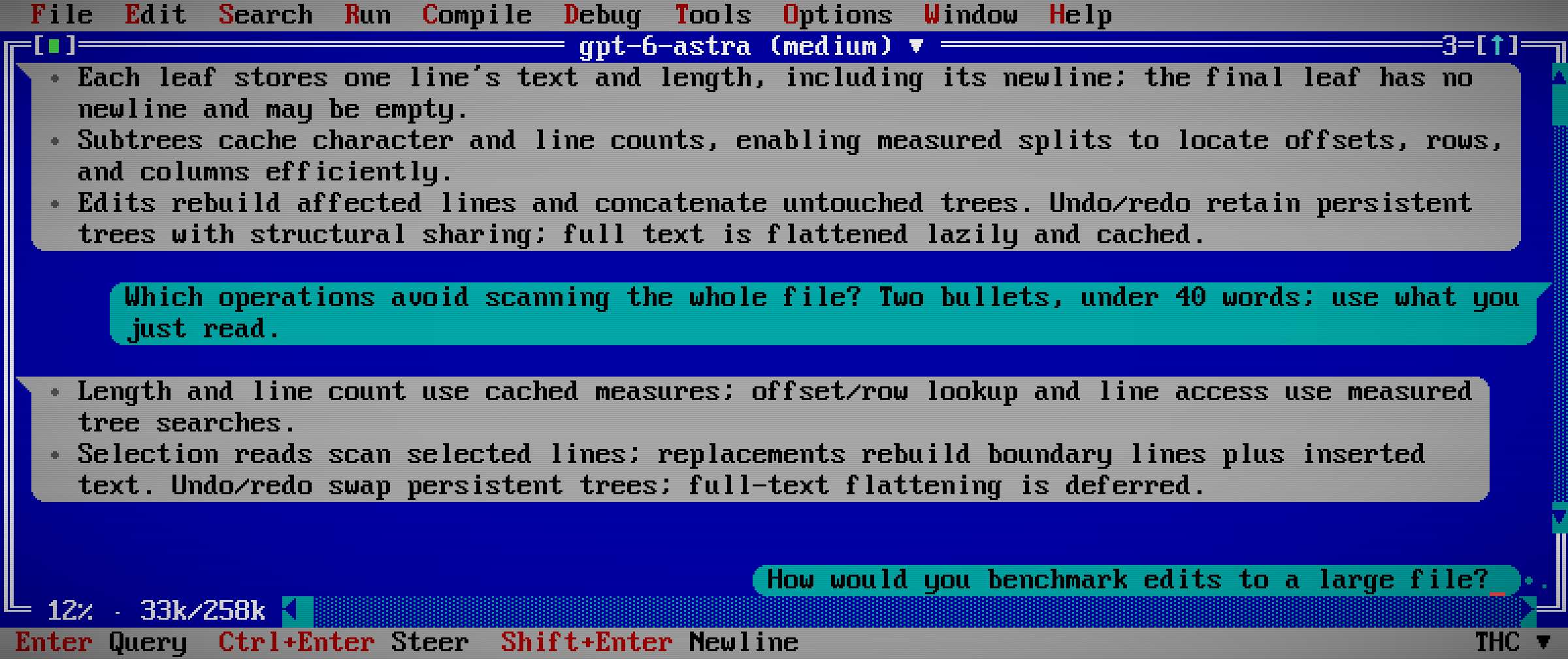
The screenshots in these guides show the Metal frontend working in this project, with the CRT filter and Pixelate Unicode enabled. Click an image to view it at full resolution.
Open a project
Install the editor, then open a directory or a source file:
hide .
hide Main.hs
Opening a directory shows its files in the Files pane and opens its Cabal package file when one is present. Add --window for a native window or --web for the browser. The default display is the terminal.
Use F3 to open a file, F2 to save, F10 for the menus and F1 for help. The editing guide covers navigation, search, selection, window arrangement and shared split views. Display and frontends covers appearance, scaling and clipboard support.
Edit, build and debug
With Haskell Language Server, inspect types, follow definitions, complete identifiers, rename symbols and navigate diagnostics as you edit. Compile > Make builds the selected target; Run > Run runs it in an embedded terminal. The running and debugging guide covers THC and GHC targets, tests, breakpoints, stepping and stack inspection.
Review and commit changes in the editor, or inspect binary files with the hex editor.
Work with agents
Open a conversation beside your source. An agent can work with live buffers, including unsaved edits, and use language tools, terminals, builds and the debugger through the editor's session tools. You control access through Options > Agent Permissions.
Agent skills describe workflows; the operation reference lists the available calls. Configuration covers provider setup, project context, permissions and startup defaults.
Resume locally or over SSH
Each desktop belongs to a session. Detach and return later, or resume through a different frontend:
hide --resume
hide --web --resume
For remote editing, keep files and tools on another machine and use a local display:
hide --window buildbox:projects/exampleDocumentation and development
The guide index lists the user guides, and the F1 quick reference collects everyday commands. Read the architecture and development guide to work on the editor itself. The documentation build guide explains how this site is built and published.